
5 Baby Photo 'Disasters' That Make the Best AI Dance Videos: How to Pick the Right Shot, Pose & Lighting for Kling 2.6 Motion Control (Before You Waste 8 Coins)
Those blurry, weirdly-lit baby photos you almost deleted? They're actually perfect for AI dance videos. Here's how to pick shots that won't waste your coins on Kling 2.6.
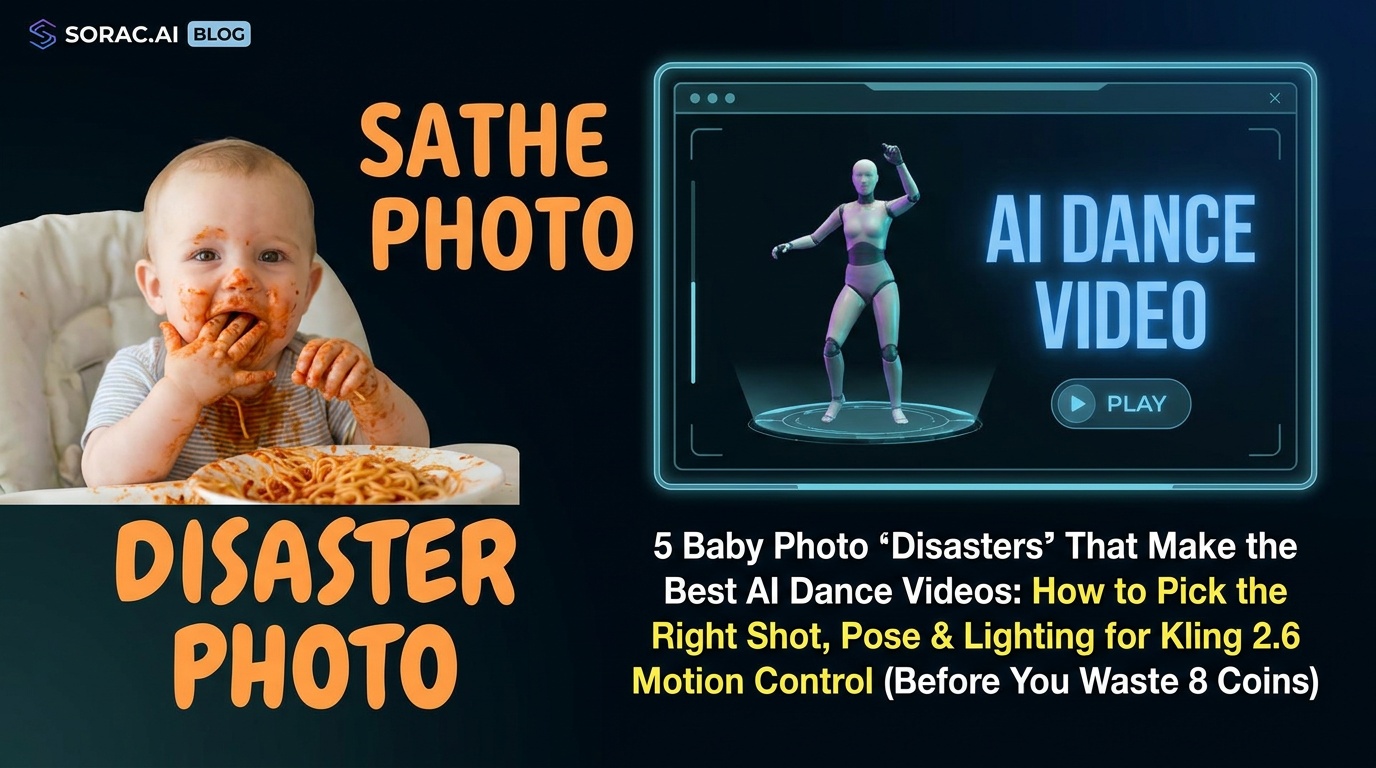
5 Baby Photo 'Disasters' That Make the Best AI Dance Videos: How to Pick the Right Shot, Pose & Lighting for Kling 2.6 Motion Control (Before You Waste 8 Coins)
Look, we've all been there. You upload what you think is the perfect baby photo to an AI dance generator, burn 8 coins, wait 2-5 minutes, and get back... a weird morphing blob that looks like your kid melted into the floor during a hip-hop routine.
Here's the counterintuitive truth: The photos you think are "disasters"—the ones with harsh shadows, weird poses, or chaotic backgrounds—often make the best AI dance videos on Kling 2.6 motion control. Meanwhile, those pristine professional shots? They can actually confuse the AI.
After generating hundreds of dance videos on soracai.com/ai-dance, I've cracked the code on what actually works. Let me save you some coins and heartbreak.
The "Perfect" Photos That Actually Fail
Stop uploading professional portrait studio shots. Those soft-focus, perfectly lit, artistically blurred backgrounds? Kling 2.6's motion control struggles with them because the AI can't detect body edges clearly.
Avoid extreme close-ups of just the face. The motion control needs to see at least shoulders and torso to map dance movements properly. Headshots = choppy results.
Group photos are coin killers. Unless you want a nightmare fuel video of three babies fused together doing the Robot dance, stick to solo shots.
Pro Tip: If you must use a group photo, crop it down to one person first using any basic photo editor, then upload to AI Dance.
Disaster #1: "The Harsh Flash Photo" (Actually Perfect)
You know that photo where grandma used flash at 2 feet and your baby looks like a deer in headlights? That's AI dance gold.
Why it works: Strong, direct lighting creates clear shadows that help Kling 2.6 detect body contours and joints. The AI reads those hard edges like a roadmap.
What to look for:
Quick fix: Got a dimly lit photo? Before uploading to soracai.com/ai-dance, boost contrast and shadows in your phone's photo editor. It genuinely helps.
Disaster #2: "The Awkward Standing Pose" (Motion Control Heaven)
That photo where baby is standing weirdly stiff, arms at odd angles, looking confused? Chef's kiss for AI dance.
Why it works: Kling 2.6 motion control copies dance moves from reference videos onto your photo. A neutral, straight-on standing pose gives the AI a clean "skeleton" to work with.
Best poses:
Avoid:
Pro Tip: The "awkward school photo" pose—standing straight, hands at sides, blank expression—is literally the ideal starting point for breakdancing, salsa, or any of the 23+ dance styles on soracai.com.
Disaster #3: "The Messy Background" (Surprisingly Stable)
Cluttered living room? Toys everywhere? Laundry pile in the corner? Doesn't matter as much as you think.
Why it works: Kling 2.6 focuses on the human figure in the foreground. As long as baby is clearly separated from the background (different colors, lighting), the AI ignores the chaos.
What actually matters:
What breaks it:
Quick fix: If baby blends into background, try adding a simple brightness/contrast adjustment to make them "pop" before uploading.
Disaster #4: "The Unflattering Angle" (Motion Tracking Gold)
Shot from slightly above or below? Not perfectly centered? Fantastic.
Why it works: Slight angle variations (15-30 degrees) actually help Kling 2.6's motion control understand depth and body structure. Perfectly flat, straight-on shots can look 2D and robotic.
Sweet spot angles:
Avoid:
Pro Tip: If you're using the Dance Baby or Shake It To Max templates on soracai.com/ai-dance, a slight upward angle (like baby on a chair, you shooting from below) works beautifully for energetic moves.
Disaster #5: "The Grainy Phone Photo" (Better Than You Think)
Older phone? Low light? Grainy, noisy image? Still totally usable.
Why it works: Kling 2.6 cares more about composition and pose than resolution. A grainy photo with clear body positioning beats a crystal-clear photo with a bad pose.
Minimum requirements:
When grain becomes a problem:
Quick fix: Use your phone's "auto enhance" before uploading. Even basic smartphone AI sharpening helps Kling 2.6 detect features better.
The Pre-Upload Checklist (Save Your 8 Coins)
Before you hit upload on soracai.com/ai-dance, run through this 30-second check:
✓ Body visibility: Can you see at least torso + arms + legs?
✓ Solo shot: Only one person in frame?
✓ Clear edges: Can you trace the outline of the body easily?
✓ Neutral pose: Standing, sitting, or neutral position (not mid-jump)?
✓ Contrast: Does baby stand out from background?
Pro Tip: If you're unsure about a photo, generate a test image first using Nano Banana 2 Pro at soracai.com/create (just 1-4 coins). Describe "baby in neutral standing pose, clear lighting" and use that AI-generated image for your dance video. Seriously. AI-to-AI often works better than real photos because the pose and lighting are already optimized.
Aspect Ratio Matters (Especially for TikTok)
When you upload to AI Dance, the output matches your input aspect ratio. Here's what works:
9:16 (vertical/portrait): Perfect for TikTok, Reels, Stories. This is your go-to for viral baby dance videos.
1:1 (square): Great for Instagram feed posts.
16:9 (horizontal): YouTube, Facebook. Less common for baby content but works for family compilations.
Pro Tip: If your photo is horizontal but you want vertical output for TikTok, crop it to 9:16 before uploading. Don't let the AI decide—it'll just letterbox it weirdly.
Dance Style Selection Strategy
Not all 23+ dance styles work equally well with baby photos. Here's the hierarchy:
Safest bets (high success rate):
Medium difficulty:
Advanced (can be glitchy):
Pro Tip: Start with Robot or Dance Baby for your first video. Once you see how Kling 2.6 interprets your specific photo, branch out to more complex styles.
The 2-5 Minute Wait: What's Actually Happening
While your video renders, Kling 2.6 motion control is:
Why some take longer: Complex backgrounds, unclear body edges, or high-motion dance styles add processing time. Simple = faster.
When to Regenerate vs. Cut Your Losses
Regenerate (try again) if:
Cut losses (try different photo) if:
Pro Tip: Each generation costs 8 coins. If first attempt fails badly, the photo is the problem—not the dance style. Switch photos instead of burning coins on regenerations.
Bonus: Chain AI Tools for Maximum Viral Potential
Here's the workflow pro creators use:
Total cost: ~13-15 coins for a complete viral video package.
Pro Tip: With Google's new Nano Banana 2 Lite (just announced for general availability), the image generation step is now even faster and cheaper for rapid iteration. Generate 5-10 pose variations, pick the best, then animate.
The Harsh Truth About AI Dance Videos
Not every photo will work perfectly. That's okay. The beauty of the 8-coin system on soracai.com is that you're not locked into a monthly subscription—you only pay for what you use.
Expect a 70-80% success rate if you follow this guide. The other 20-30%? Learning experiences. Save those coins, adjust your approach, try again.
The "disasters" that work best share one thing: clarity. Clear pose, clear lighting, clear separation from background. Everything else is negotiable.
Now go dig through your camera roll for those "bad" photos you almost deleted. They're about to become your best dance videos.
Try AI Dance at soracai.com/ai-dance and see which "disaster" photo surprises you most.
Related Articles

TikTok Just Gave AI Dance Videos to Every Advertiser for Free—And That's Exactly Why Yours Won't Go Viral Anymore
8 min read
Kling 2.6 vs Seedance 2.0 for TikTok Dance Videos: Which Motion Control Model Actually Drives Followers in June 2026? (Real Creator Data from 47 Viral Accounts)
9 min read

PicLumen's TikTok Pet Templates Just Exposed the Real Gap in AI Dance Platforms: Why Kling 2.6's Motion Control Still Beats 'One-Click' for Cat & Dog Videos in June 2026
9 min read