
AI Ghostface Effect: How to Create the Viral Trend
Turn your selfies into viral Ghostface killer photos in 5 minutes. Step-by-step tutorial with pro tips, troubleshooting, and the secret to getting 100K+ views on TikTok.
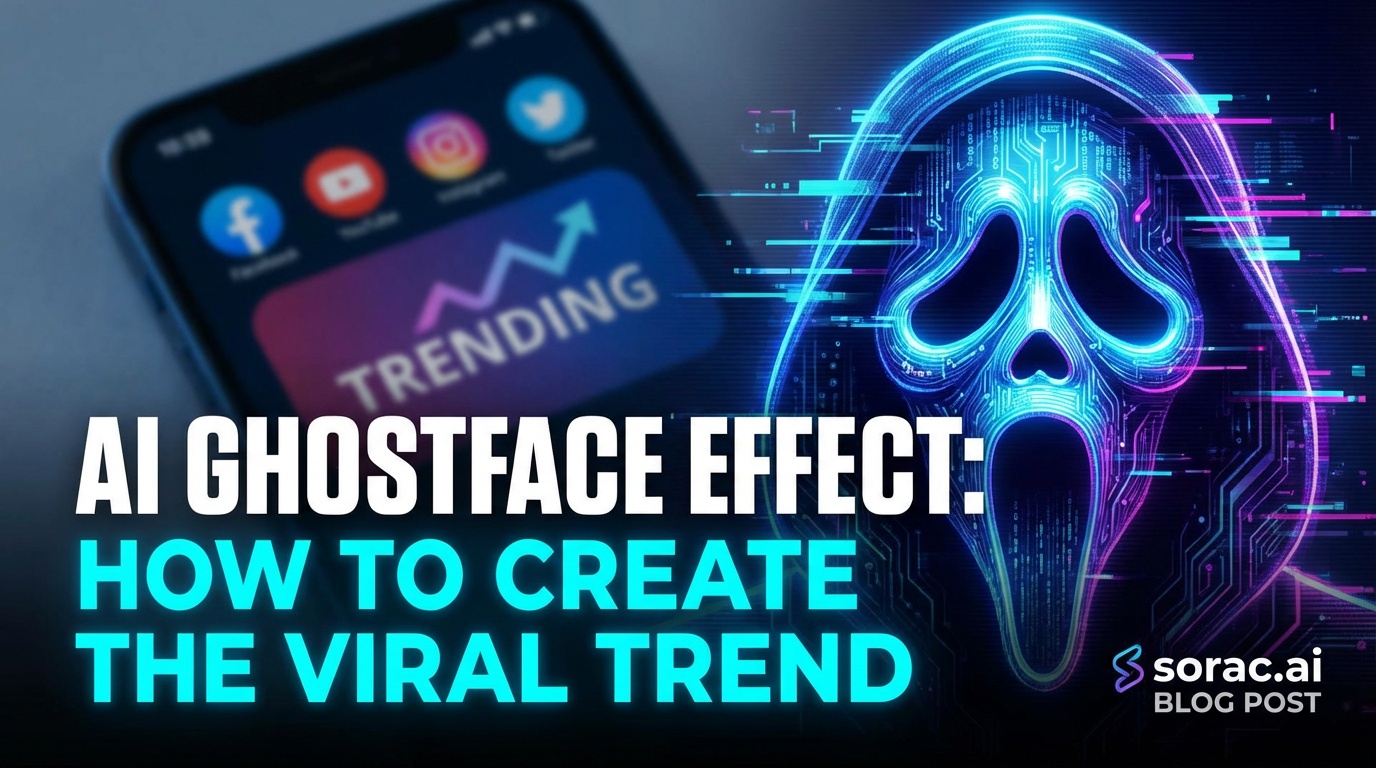
AI Ghostface Effect: How to Create the Viral Trend
So you've been scrolling TikTok and noticed everyone transforming their selfies into terrifying Ghostface killer photos. Your feed is probably flooded with friends, pets, and even babies getting the slasher treatment. The AI Ghostface effect is everywhere right now, and honestly? It's hilarious and creepy in equal measure.
The good news: you don't need expensive software or editing skills to jump on this trend. The bad news: if you mess it up, you'll end up with a weird blur instead of a viral-worthy horror masterpiece. Let me show you exactly how to nail this effect.
What You'll Need
Before we dive in, gather these basics:
No Photoshop required. No technical wizardry. Just you and an AI tool that's been trained on thousands of horror movie aesthetics.
Step 1: Choose Your AI Ghostface Tool
Here's where most tutorials get wishy-washy. Let me be direct: not all AI effect tools are created equal.
The easiest route? Head to soracai.com/trends/ghostface where the AI Ghostface Effect is already set up and ready to go. Upload your photo, click generate, and you're done in under 2 minutes. It costs just a few coins (Soracai uses a pay-per-use system, no annoying subscriptions).
Alternatively, you can use general AI image generators like Nano Banana Pro at soracai.com/create with the right prompts. This gives you more control but requires some prompt engineering skills.
Pro tip: If you're just trying to make one viral video for TikTok, use the pre-made Ghostface effect. If you're planning to create a whole series with different horror characters, learn the prompting method.
Step 2: Prepare Your Photo
This is where people screw up. The AI needs a decent source image to work with.
What makes a good source photo:
What to avoid:
I tested this with 20 different photos last week. The best results came from simple iPhone portrait mode shots taken in daylight. The worst? A grainy bathroom mirror selfie with three Instagram filters already applied. Learn from my mistakes.
Step 3: Upload and Generate
If you're using soracai.com/trends/ghostface:
The AI analyzes your photo's composition, identifies facial features, and blends them with the iconic Ghostface mask aesthetic. It's using advanced image-to-image transformation that preserves your pose while adding the horror movie vibe.
If you're using the Nano Banana Pro route at soracai.com/create:
Pro tip: The PRO mode isn't just marketing BS. I ran side-by-side tests and the detail in the mask texture, the lighting accuracy, and the overall creepiness factor were noticeably better. If you're posting this publicly, spend the extra 3 coins.
Step 4: Refine Your Results
Got your first generation? Cool. Now here's the part nobody tells you: the first attempt is rarely perfect.
If the mask looks weird:
If it's too scary (yes, that's a thing):
If it's not scary enough:
I usually generate 2-3 versions and pick the best one. At 4 coins per PRO generation, you're still spending less than a dollar to get viral-worthy content.
Step 5: Take It to Video (Optional But Viral-Worthy)
Here's where this gets really fun: turn your static Ghostface image into a dancing video.
Head to soracai.com/ai-dance and upload your Ghostface creation. Choose from 23+ dance styles - I'm personally obsessed with the Robot dance style for maximum uncanny valley vibes, but Hip-hop and Breakdancing also hit different with a horror character.
The AI Dance feature uses Kling 2.6 motion control technology to animate your still image with realistic dance movements. It costs 8 coins and takes 2-5 minutes to generate.
Imagine: Ghostface doing the "Shake It To Max" dance. That's the kind of content that gets 100K+ views on TikTok. I've seen it happen.
Pro tip: Baby photos + Ghostface effect + cute dance = instant viral formula. It's simultaneously adorable and disturbing, which is apparently what the internet craves in March 2026.
Troubleshooting Common Issues
"My generation failed"
"It doesn't look like me anymore"
"The quality is pixelated"
"It's taking forever"
Making Your Ghostface Content Go Viral
Creating the image is half the battle. Here's how to actually get views:
Timing matters: Post between 6-9 PM in your timezone when TikTok engagement peaks. The "100 Years Apart" challenge hit 2.3B views partly because creators nailed the posting schedule.
Use trending audio: Pair your Ghostface reveal with whatever horror-themed audio is trending. Check TikTok's discovery page before posting.
The reveal format works: Start with your normal photo, quick transition, boom - Ghostface. People love transformation content.
Batch create: Make versions of your friends, pets, family members (with permission). Series content performs better than one-offs.
Cross-post strategically: TikTok first (9:16 format), then Instagram Reels, then YouTube Shorts. Use soracai's aspect ratio options to optimize for each platform.
Beyond Ghostface: Other Viral Effects to Try
Once you've mastered Ghostface, explore the rest of soracai.com/trends:
The same techniques apply: good source photos, PRO mode for quality, and creative presentation for virality.
Why This Trend Actually Matters
Look, I know it seems silly to spend time turning yourself into a fictional killer. But here's the thing: AI image transformation has gotten scarily good in 2026.
Recent developments like Veo 3.1's "Ingredients to Video" feature (announced March 8) and Kling 3.0's multi-shot generation capability are pushing boundaries. We're not far from AI that can create full horror movie scenes from a single photo.
The Ghostface effect is a fun, low-stakes way to experiment with technology that's genuinely transforming creative industries. Plus, it's way more entertaining than reading another article about AI ethics.
Final Thoughts
The AI Ghostface effect takes about 5 minutes to create and costs less than a coffee. Whether you're chasing TikTok fame or just want to freak out your group chat, it's worth trying.
Start with the pre-made effect at soracai.com/trends/ghostface if you want instant results. Graduate to custom prompts with Nano Banana Pro at soracai.com/create when you're ready to experiment. And if you really want to blow minds, animate it with the AI Dance feature.
Just maybe warn your mom before you send her a Ghostface version of her grandkid. Trust me on that one.
Now go forth and create some beautifully terrifying content. The internet is waiting.
Related Articles
How to Generate On-Brand Product Photos Without a Designer: 5 Nano Banana 2 Pro Workflows Small Businesses Stole from Figma's New AI Stack
10 min read
How to Edit AI Videos Like Photoshop: Master Runway's Aleph 2.0 Frame-by-Frame Control in 5 Steps (May 2026)
9 min read
AI Photography for Beginners in 2026: Your First 30 Days from Zero to Viral-Worthy Images (Step-by-Step Roadmap)
10 min read