How to Create Studio-Quality AI Videos in Under 5 Minutes: The Complete Sora 2 Setup Guide for TikTok Creators (Prompts, Aspect Ratios & Frame Settings That Actually Work in 2026)
Stop wasting time on bad AI videos. Learn the exact Sora 2 settings, aspect ratios, and prompts that TikTok creators use to generate studio-quality content in under 5 minutes.
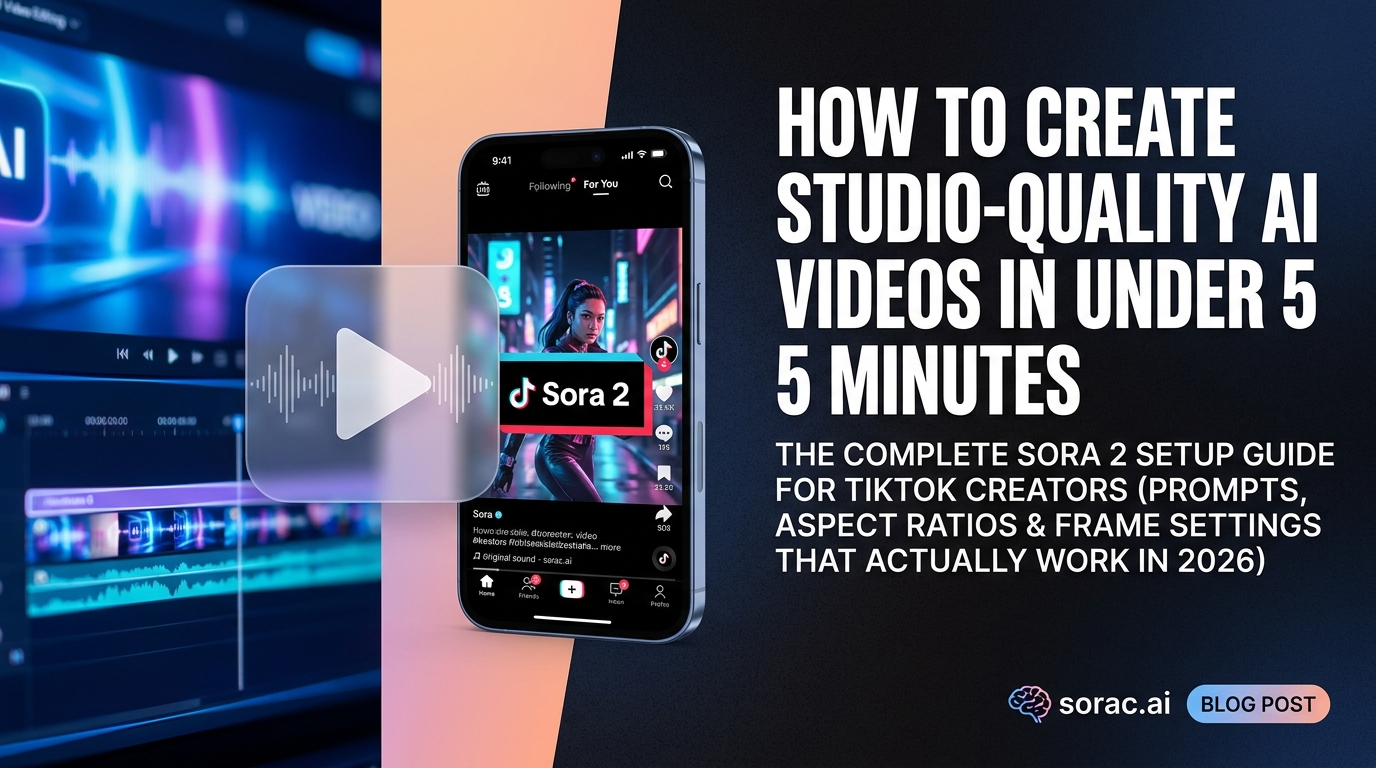
How to Create Studio-Quality AI Videos in Under 5 Minutes: The Complete Sora 2 Setup Guide for TikTok Creators (Prompts, Aspect Ratios & Frame Settings That Actually Work in 2026)
Look, I get it. You've seen those insanely viral AI videos on TikTok—the ones pulling millions of views—and you're thinking "I need to make these, but I'm not about to spend three hours watching YouTube tutorials."
Good news: Creating professional AI videos with Sora 2 is actually stupidly simple once you know the right settings. Bad news: Most creators are still messing up aspect ratios and frame counts, then wondering why their videos look like garbage.
Let me fix that for you in the next 5 minutes.
What You're Going to Learn (And Why It Matters)
By the end of this tutorial, you'll know:
This isn't theory—I'm walking you through the exact process that's working for creators right now in 2026.
What You Need Before Starting
The basics:
Optional but helpful:
Step 1: Choose Your Aspect Ratio Like a Pro
This is where 80% of beginners screw up. They generate a beautiful video in 16:9, then try to post it on TikTok where it looks like hot garbage with black bars everywhere.
Here's the breakdown:
Portrait Mode (9:16) - Use This For:
Why it matters: Vertical video takes up the entire phone screen. Horizontal video on TikTok? You just lost 60% of your visual real estate and your viewer's attention.
Landscape Mode (16:9) - Use This For:
Head to soracai.com/ai-video-generator and you'll see these options clearly labeled. Pick portrait for social media. Trust me on this.
Pro tip: If you're unsure where you'll post, always go portrait. It's easier to crop vertical to horizontal than the other way around.
Step 2: Nail Your Frame Count (Don't Waste Coins)
Sora 2 on Soracai gives you two options: 10 frames or 15 frames.
Here's what nobody tells you:
10 frames = Shorter clips (perfect for quick cuts, transitions, B-roll)
15 frames = Longer clips (better for standalone content)
For your first video, start with 10 frames. Test your prompt, see if the style matches what you want, then scale up to 15 frames for your final version.
Step 3: Write Prompts That Actually Work
This is where the magic happens—or where everything falls apart.
The Anatomy of a Great Sora 2 Prompt
Bad prompt: "A cat walking"
Good prompt: "A fluffy orange tabby cat walking confidently down a neon-lit Tokyo street at night, rain reflecting the pink and blue lights, cinematic depth of field, shot on 35mm film"
See the difference? The second prompt gives Sora 2 specifics:
My 5-Part Prompt Formula:
Example using the formula:
"A skateboarder [subject] performing a kickflip [action] in an empty swimming pool [environment] during golden hour with dramatic shadows [lighting/mood], shot with a fisheye lens, 90s skate video aesthetic [style]"
Pro tip: Need inspiration? Check out the Soracai prompts library with 1000+ curated examples. Find something close to your vision, copy it, and tweak it.
Step 4: Generate Your Video (The Easy Part)
Once you've got your settings dialed in:
Seriously, that's it. Sora 2 does the heavy lifting while you grab coffee.
The video costs 5 coins per generation, which is insanely affordable compared to hiring a videographer or spending hours learning After Effects.
Step 5: Level Up with Hybrid Content
Here's a power move most creators miss: Combine Sora 2 videos with other Soracai tools for next-level content.
Combo #1: AI Dance + Sora 2 Backgrounds
Combo #2: Nano Banana 2 Pro + Video
Combo #3: Trending Effects as Video Intros
Pro Tips That Separate Viral Videos from Flops
Tip #1: Front-load your best visual
The first 0.5 seconds determine if someone scrolls past. Make sure your prompt creates immediate visual interest.
Tip #2: Use motion words
"Floating," "swirling," "rushing," "gliding"—these give Sora 2 clear direction and create dynamic videos instead of static scenes.
Tip #3: Specify camera movement
"Slow zoom in," "camera orbiting around," "drone shot pulling back"—this adds cinematic quality.
Tip #4: Test multiple versions
At 5 coins per video, you can afford to generate 3-4 variations of your concept. The difference between version 1 and version 3 can be massive.
Tip #5: Study what's working
Browse /trends to see what effects are going viral right now. Adapt those concepts into your Sora 2 prompts.
Troubleshooting Common Issues
"My video looks blurry/low quality"
"The AI didn't understand my prompt"
"The motion looks weird/glitchy"
"I'm running out of coins too fast"
Real Creator Examples (What's Actually Working in 2026)
Travel creators are using Sora 2 for B-roll of places they haven't visited yet, then mixing it with real footage. Controversial? Maybe. Effective? Absolutely.
Product reviewers are generating lifestyle shots of products in exotic locations without leaving their house.
Story-time TikTokers are using AI video as visual accompaniment instead of boring static images or stock footage.
Meme accounts are combining Sora 2 with AI Dance videos to create absurd, shareable content that's racking up millions of views.
The common thread? They're all using AI video as a tool to enhance their existing content strategy, not replace their creativity.
Your Next Steps (Do This Today)
Bonus move: Create a dancing version of yourself with AI Dance, then generate a Sora 2 background that matches. Post both. Watch your engagement double.
The difference between creators who succeed with AI video and those who don't isn't talent or expensive equipment—it's knowing the right settings and actually hitting generate.
You now know the settings. So what are you waiting for?
Go make something viral.
Related Articles
Your First AI Dance Video in 10 Minutes: The Complete Beginner's Roadmap to Kling 2.6 Motion Control (No Tech Skills Required)
8 min read
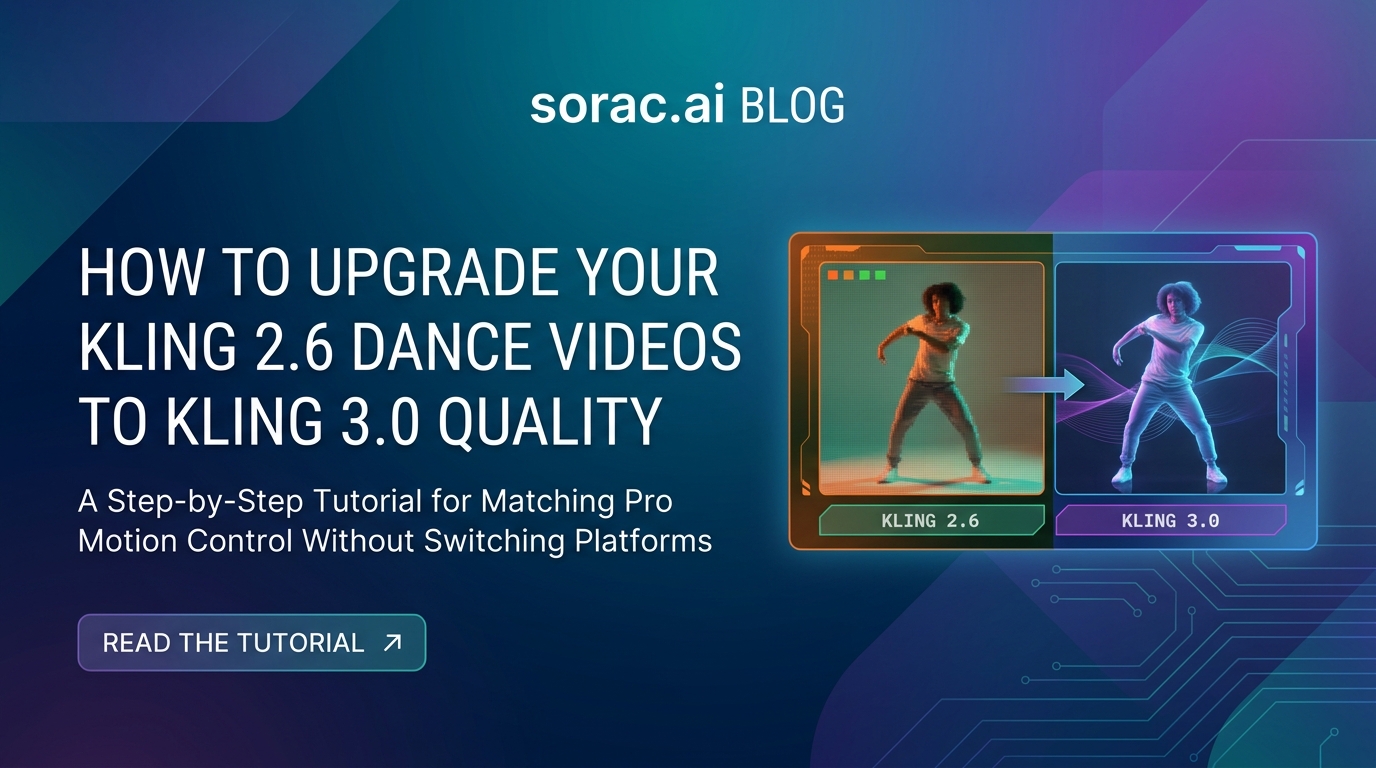
How to Upgrade Your Kling 2.6 Dance Videos to Kling 3.0 Quality: A Step-by-Step Tutorial for Matching Pro Motion Control Without Switching Platforms
8 min read
How to Write AI Image Prompts That Actually Work in 2026: 10 Social-Ready Examples from Nano Banana 2 Pro's Prompt Library (Plus the 3-Part Formula Krea 2's Technical Report Just Validated)
9 min read