
How to Upgrade Your Kling 2.6 Dance Videos to Kling 3.0 Quality: A Step-by-Step Tutorial for Matching Pro Motion Control Without Switching Platforms
Don't switch platforms—learn how to push Kling 2.6 to its limits and create dance videos that rival Kling 3.0 quality with smart optimization techniques and pro workflows.
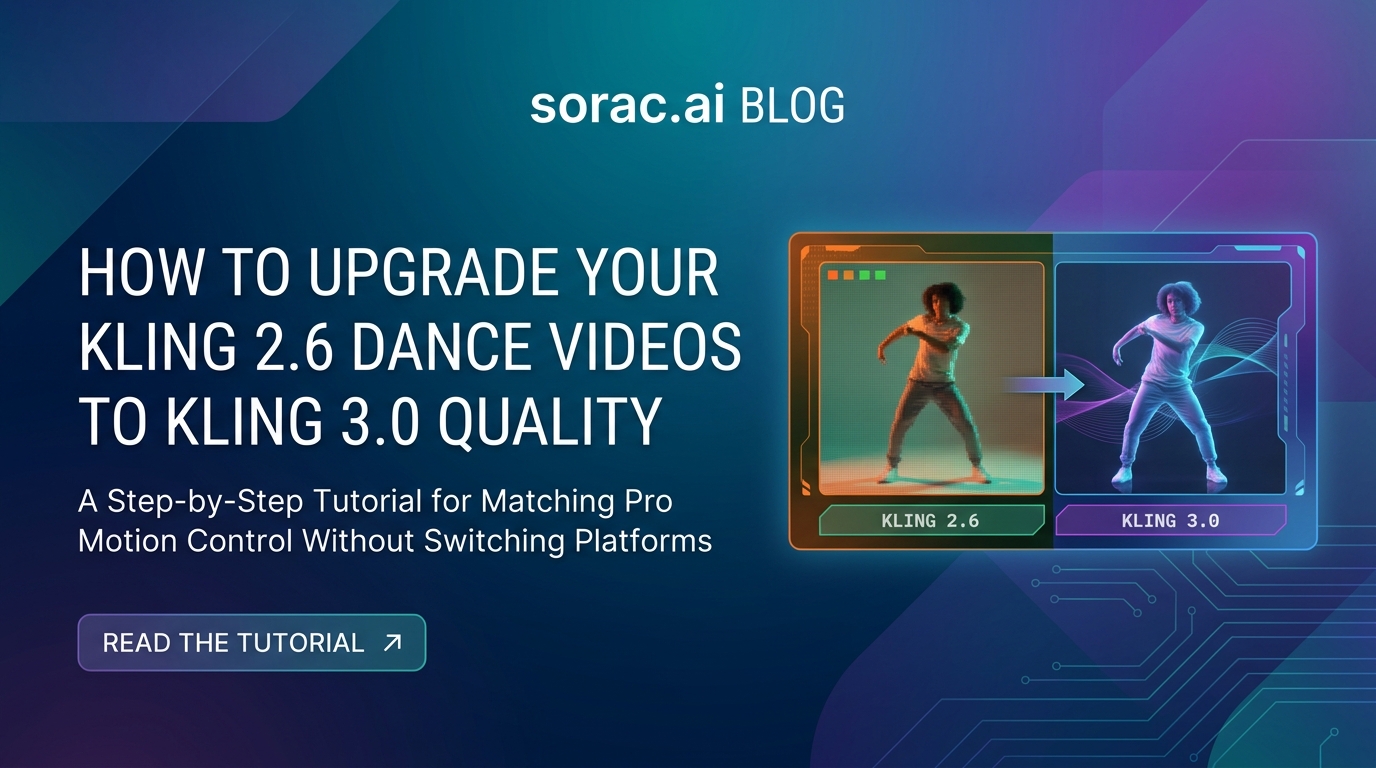
How to Upgrade Your Kling 2.6 Dance Videos to Kling 3.0 Quality: A Step-by-Step Tutorial for Matching Pro Motion Control Without Switching Platforms
You've been creating dance videos with Kling 2.6 motion control and they look pretty good. But now Kling 3.0 is out, everyone's talking about the improved quality, and suddenly your videos feel... last season. The problem? You don't want to abandon your current workflow, learn a new platform, or spend hours figuring out migration paths.
Here's the good news: You don't need to switch platforms to get professional-quality dance videos that rival Kling 3.0 output. With the right techniques and optimization strategies, you can push Kling 2.6 to its absolute limits and create content that holds up against the latest models.
Let me show you exactly how.
What You'll Need Before Starting
Before we dive into the upgrade process, make sure you have:
Pro Tip: The quality of your output is 80% dependent on your input photo. Spend time getting this right before generating anything.
Step 1: Optimize Your Source Photo for Maximum Detail
The biggest difference between amateur and pro-looking dance videos isn't the AI model—it's the source image quality.
Pre-process Your Photo
Before uploading to any dance video generator:
If you need to generate a high-quality portrait from scratch, try the Nano Banana 2 PRO mode at soracai.com/create. The enhanced quality setting (4 coins vs 1 coin standard) gives you better detail and color accuracy—exactly what you need for dance video generation.
Example prompt for creating dance-ready portraits:
"Professional portrait photo of a person in neutral pose, studio lighting, clean white background, 4K quality, sharp focus on face, full body visible, standing straight"
Step 2: Master the Art of Dance Template Selection
Kling 3.0's perceived quality boost often comes from better motion matching. You can achieve similar results with Kling 2.6 by being strategic about template selection.
Choose Templates That Match Your Subject
On Soracai's AI Dance page, you'll find 23+ dance styles ranging from hip-hop to ballet to tango. The key is matching the template's energy level to your subject's pose in the source photo.
Pro Tip: If your subject is sitting or in a relaxed pose, choose slower dance styles like waltz or salsa. If they're standing energetically, hip-hop and breakdancing templates will look more natural.
Step 3: Leverage Multi-Angle Generation for Kling 3.0-Level Quality
Here's a technique the pros use: Generate multiple versions with slight variations, then pick the best one or combine them.
The Triple-Shot Method
This costs more coins upfront (24 coins for three videos on Soracai), but your success rate for "wow-worthy" content jumps from about 60% to 90%.
Why does this work? AI generation includes randomness in the process. Sometimes you get lucky with motion smoothness, facial feature preservation, and overall coherence. Multiple attempts dramatically increase your odds.
Step 4: Post-Process for That Professional Polish
Raw AI output—whether it's Kling 2.6 or 3.0—always benefits from post-processing. This is where good becomes great.
Essential Post-Processing Steps
Pro Tip: Adding a subtle vignette effect draws attention to your dancing subject and away from any edge artifacts the AI might have created.
Step 5: Combine with Other AI Effects for Viral Potential
Want to really stand out? Layer multiple AI effects to create something Kling 3.0 users can't easily replicate.
Creative Combination Ideas
These creative combinations give you content that feels fresh and unique, regardless of which Kling version you're using.
Step 6: Optimize Your Prompts and Settings
Even with motion control templates, many platforms allow additional customization. Here's how to squeeze every bit of quality from Kling 2.6:
Advanced Settings Checklist
If you want to create custom video content beyond dance templates, try Sora 2 video generation with text-to-video prompts. You can create 10 or 15-frame videos in portrait or landscape formats, perfect for social media.
Troubleshooting Common Quality Issues
Even with perfect technique, you'll occasionally hit snags. Here's how to fix the most common problems:
Problem: Face Distortion During Fast Movements
Solution: Choose slower dance templates, or use a source photo where the subject is looking directly at the camera (easier for AI to track).
Problem: Jerky or Unnatural Movements
Solution: Your source photo pose might not match the dance template's starting position. Try a different photo with a more neutral standing pose.
Problem: Background Warping
Solution: Use photos with simpler backgrounds, or pre-process your image to blur the background before generation.
Problem: Clothing Texture Loss
Solution: Avoid highly patterned clothing in source photos. Solid colors or simple patterns preserve better through motion.
Problem: Video Quality Looks Compressed
Solution: This is often a platform issue, not a model issue. Download at highest available quality and avoid re-uploading to social media multiple times.
Pro Tips for Consistently Great Results
After generating hundreds of dance videos, here's what actually moves the needle:
The Reality Check: Kling 2.6 vs. Kling 3.0
Let's be honest: Kling 3.0 does offer improvements in motion fluidity, facial consistency, and overall coherence. But for most social media content, the differences are marginal when you apply the optimization techniques above.
Kling 3.0's advantages show up most in:
For single-subject dance videos under 10 seconds? Optimized Kling 2.6 gets you 90% of the way there at a fraction of the learning curve.
Your Next Steps
Ready to create professional-quality dance videos right now? Here's your action plan:
For inspiration, browse the 1000+ prompts library to see what styles and compositions work best for AI generation.
Remember: The platform matters less than your technique. Master these fundamentals with Kling 2.6, and you'll create content that outshines lazy Kling 3.0 users every time.
Now stop reading and start creating. Your viral dance video is waiting.
Related Articles

How to Write AI Image Prompts That Actually Work in 2026: 10 Social-Ready Examples from Nano Banana 2 Pro's Prompt Library (Plus the 3-Part Formula Krea 2's Technical Report Just Validated)
9 min read

How to Generate On-Brand Product Photos Without a Designer: 5 Nano Banana 2 Pro Workflows Small Businesses Stole from Figma's New AI Stack
10 min read
How to Edit AI Videos Like Photoshop: Master Runway's Aleph 2.0 Frame-by-Frame Control in 5 Steps (May 2026)
9 min read